Finding a safe and ad-free file sharing app is not always easy. Many popular file transfer apps show too many full-screen ads. Some also include tracking tools and extra features that most people never use. Because of that, many users look for a cleaner and faster option.
EasyShare, developed by Vivo Communication Technology Co. Ltd., is a good choice for Android users. The app is free to use and does not show ads. It also offers a simple design that makes file sharing quick and easy. Whether someone is moving to a new phone or sending large 4K videos to another nearby device, the official EasyShare APK helps complete the job without using mobile data or cloud storage. Thanks to Wi-Fi Direct technology, transfer speeds can reach up to 40 Mbps under good conditions.
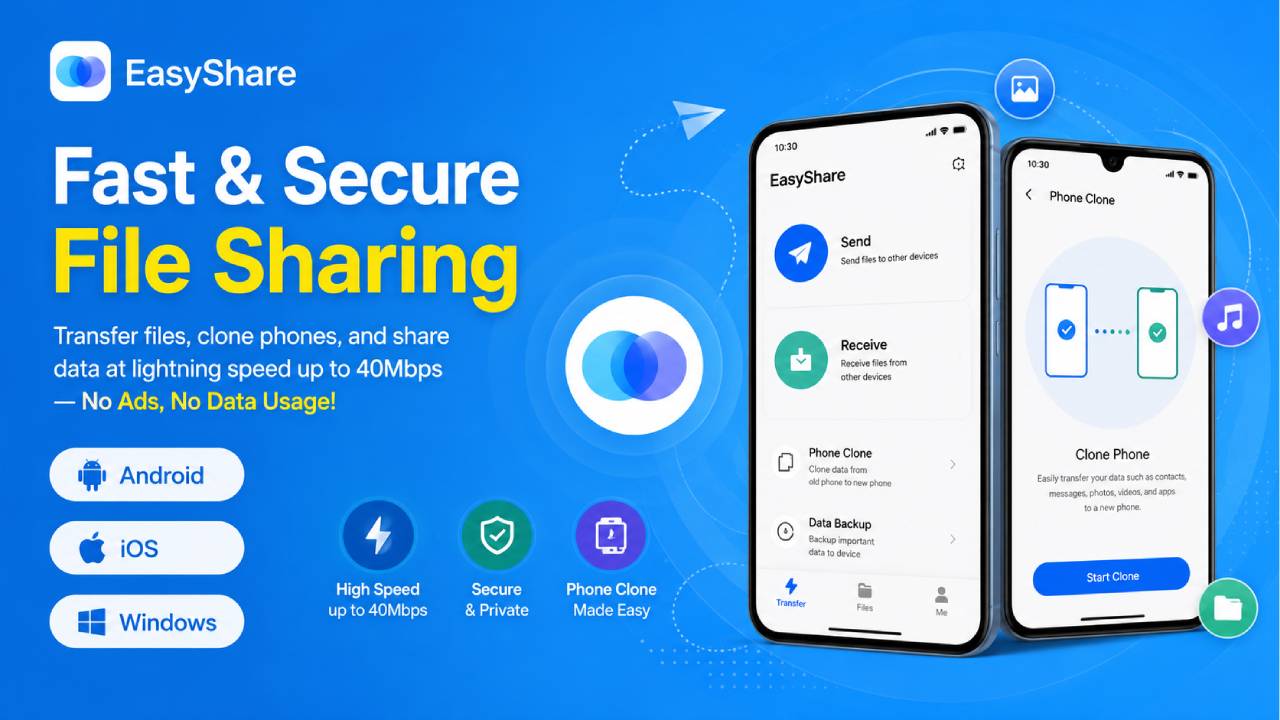
Technical Specifications: EasyShare for Android
Before downloading the app, make sure the Android device meets the basic system requirements.
| Parameter | Specification |
|---|---|
| App Name | EasyShare |
| Developer | Vivo Communication Technology Co. Ltd. |
| Latest Stable Version | 7.1.1.7 (ex_gp Build) |
| File Size | Around 61.16 MB |
| Minimum Android Version | Android 11.0 or higher |
| License | Free and Ad-Free (Freeware) |
| Main Connection Method | Wi-Fi Direct (Wireless LAN) and Bluetooth |
How EasyShare Works
Unlike cloud-based file transfer apps, EasyShare does not upload personal files to online servers. Instead, it creates a direct connection between two nearby devices. As a result, files move directly from one phone to another without using the internet.
Local Wi-Fi Direct Connection
After selecting Send or Receive, EasyShare creates a temporary wireless connection by using the phone’s Wi-Fi hardware. The second device joins this private connection by scanning a QR code. This method is much faster than normal Bluetooth sharing. It also avoids mobile data usage completely.
Because the connection stays between both devices, files remain on the local network during the transfer process.
Fast Transfer Speed
EasyShare uses Wi-Fi Direct to move files much faster than regular Bluetooth. Under normal conditions, transfer speeds can reach up to 40 Mbps.
Large videos, high-quality photos, documents, music collections, and APK files can move from one device to another within a short time. Bigger files naturally take longer, but the process is still much faster than many older wireless transfer methods.
How to Install the Official EasyShare APK
EasyShare comes pre-installed on many Vivo phones. However, users of Samsung, Google Pixel, Xiaomi, Motorola, and other Android brands may need to install the APK manually if they are not downloading it from Google Play.
Step 1: Allow Unknown Apps
Open the Settings app.
Go to Apps or Apps & Notifications.
Open Special App Access.
Select Install Unknown Apps.
Choose the browser or file manager that will open the APK file.
Turn on Allow from this source.
This permission allows Android to install apps that are downloaded outside the Play Store.
Step 2: Download the APK File
Get the official EasyShare APK download package.
Make sure the APK file has not been changed or damaged before installing it. A clean installation helps avoid app errors later.
Step 3: Install the APK
Open the phone’s File Manager.
Go to the Downloads folder.
Find the APK file, such as:
com.vivo.easyshare_7.1.1.7.apk
Tap the file.
The Android package installer will open automatically.
Tap Install.
After the installation finishes, tap Open to start using EasyShare.
Sharing Files with EasyShare
EasyShare offers two main features. One is for normal file sharing, and the other is for moving data from an old phone to a new one.
Normal File Transfer
Start EasyShare on both devices.
On the first phone, tap Send.
On the second phone, tap Receive.
The sending phone will display a QR code.
Use the receiving phone to scan the QR code inside the EasyShare app.
Once both devices connect, choose the files that need to be shared.
Files can be selected from different categories, including:
- Apps
- Photos
- Videos
- Music
- Documents
After selecting the files, tap Send.
The transfer begins immediately after both devices stay connected.
Using Phone Clone
Phone Clone is useful when replacing an old phone with a new one. Instead of moving files one by one, the feature copies many types of data in a single process.
Open EasyShare.
Select Phone Clone from the bottom menu or side menu.
Choose the old device as Old Phone.
Choose the new device as New Phone.
The app will create a QR code for pairing.
Scan the code to connect both devices.
Choose the data that needs to be copied.
This may include:
- Contacts
- Text messages
- Call history
- Photos
- Videos
- Music
- Documents
- Other supported files
Confirm the selection.
EasyShare will begin transferring the chosen data automatically.
Common Problems and Simple Solutions
Most transfers finish without problems. However, local network settings or device restrictions may sometimes interrupt the connection.
Problem: Connection Timed Out or QR Code Does Not Work
Possible Cause
VPN services, private DNS settings, or location permissions may block the local Wi-Fi connection.
Solution
Turn off any active VPN.
Disable private DNS or network filtering if necessary.
Make sure Location Services are turned on for both devices.
Android uses location permission when scanning nearby Wi-Fi connections, even though GPS is not used for file transfers.
Restart EasyShare if the connection still fails.
Problem: Very Slow Transfer Speed
Possible Cause
Nearby wireless interference or a switch back to Bluetooth may reduce transfer speed.
Solution
Turn off any mobile hotspot running on either phone.
Keep both devices within about 5 to 10 feet of each other.
Avoid placing walls or large objects between the phones.
Check that Wi-Fi Direct is active instead of Bluetooth.
These steps usually improve transfer performance.
Problem: App Not Installed
Possible Cause
The device may not have enough storage space. Another reason could be an older version of EasyShare already installed on the phone.
Solution
Open Settings > Storage.
Make sure at least 150 MB of free storage is available before installing the app.
If an older EasyShare version already exists, uninstall it first.
Then install the latest APK again.
A clean installation often fixes this problem.
Final Thoughts
EasyShare offers a simple and reliable way to transfer files between Android devices. Since it uses Wi-Fi Direct, it does not depend on mobile data or cloud storage. The app also stays free from ads, making the experience cleaner and easier.
Whether the goal is sharing a few photos, sending large videos, moving APK files, or cloning an entire phone, EasyShare provides fast transfers through a direct local connection. Installing the official APK also helps ensure better security, improved performance, and access to the latest features available in the current version.